Getting started
The workspace shell
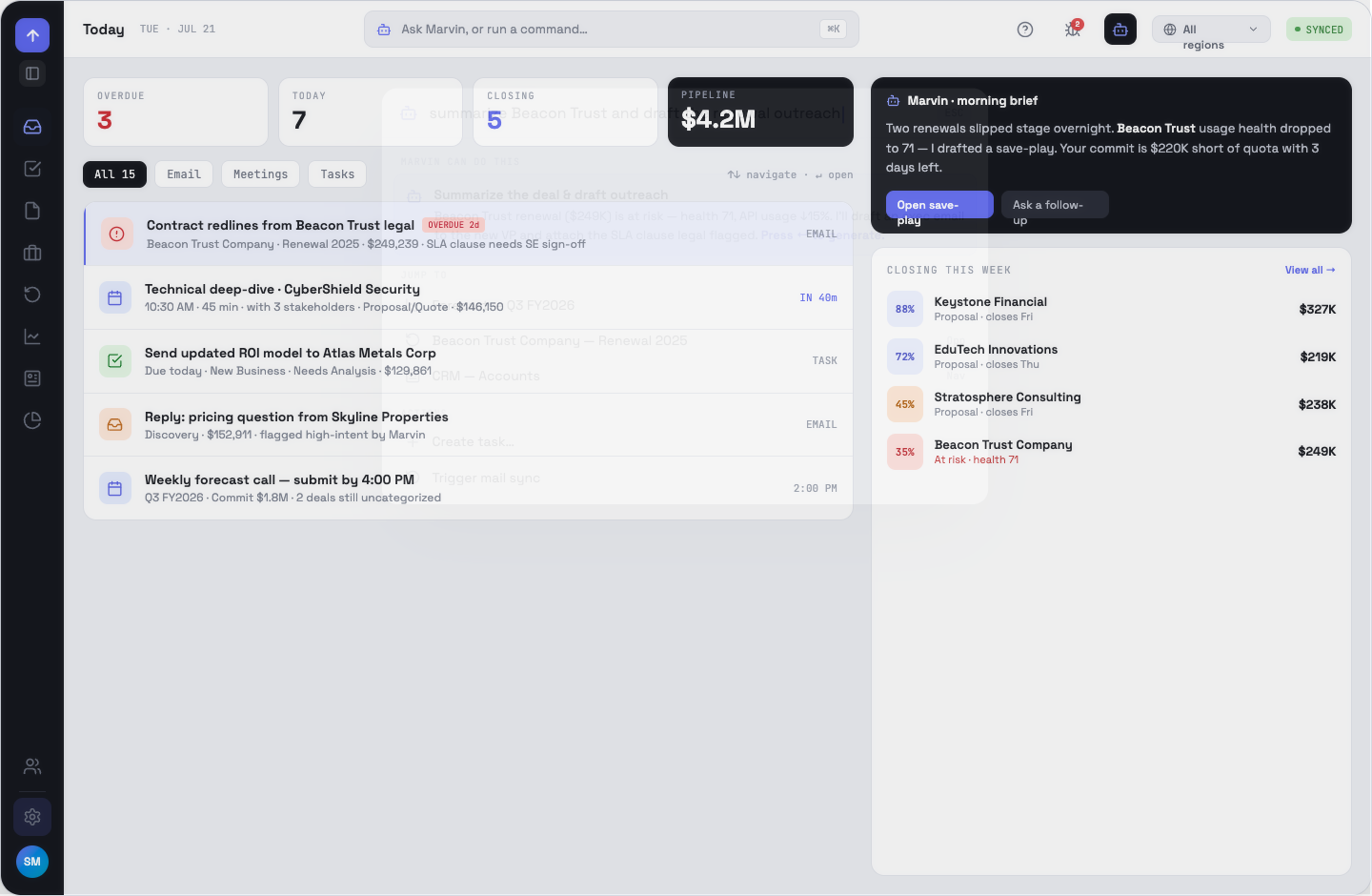
Two fixed pieces frame every screen: a dark icon rail on the left and a command bar across the top. Everything else is content.
The rail
Top to bottom: Today, Tasks, Notes, New Business, Renewals, Forecast, CRM, Reports. Below the divider sit Team (the manager surface), Settings (admin) and your avatar. The rail is icon-only by default at 66px; the toggle under the logo expands it to 208px with text labels. Detail screens highlight their parent — a deal highlights New Business or Renewals, an email highlights Today.
The command bar
The breadcrumb and date sit left. The centre is not a search box — it is “Ask Marvin, or run a command…”, and it opens the ⌘K palette. On the right: help, the detected-issues badge, the Marvin tile, the territory chip and the sync pill.
The territory chip
The globe chip filters the whole app to a region or sub-region. While scoped, a banner sits under the command bar naming the territory and its manager. The wording is precise: managed by X means an outright assignment; no manager assigned; rolls up to X means it was inherited from the region or the Head of Sales. The chip is hidden entirely if you only have one option.
OppFlow.ai docs · by Traversal · v0.1.32